Overview
This article helps students prepare for and satisfy the proctoring setup requirements for an Honorlock proctored exam. It focuses only on the physical workspace, front-facing camera setup, side-angle camera setup, and the Honorlock side-angle overlay check.
For installation, exam launch, identification, privacy, third-party exams, and general Honorlock support information, see Honorlock for Students Overview.
Before You Set Up Your Camera
- Read and follow your instructor's exam setup instructions. If your instructor gives different or more specific directions, follow the instructor's directions.
- Check that your internet connection is stable and can support the proctoring recording for the duration of the exam.
- Choose a quiet, well-lit room with a cleared desk or table.
- Keep only your computer and any exam materials permitted by your instructor on the desk.
- Have your valid photo ID ready if your exam setup asks you to show identification.
- Unsupported devices include iPad, Amcrest camera, and Nexigo camera.
Front-Facing Camera Setup
For a front-facing proctored exam, you may use a built-in webcam or a wired webcam pointed toward you in the same orientation.
- Position the camera so your face and upper torso are visible.
- Keep the work area clear and visible enough to complete any workspace scan instructions.
- Make sure the room lighting allows your face and workspace to be seen clearly; avoid low-lit or excessively backlit lighting conditions.
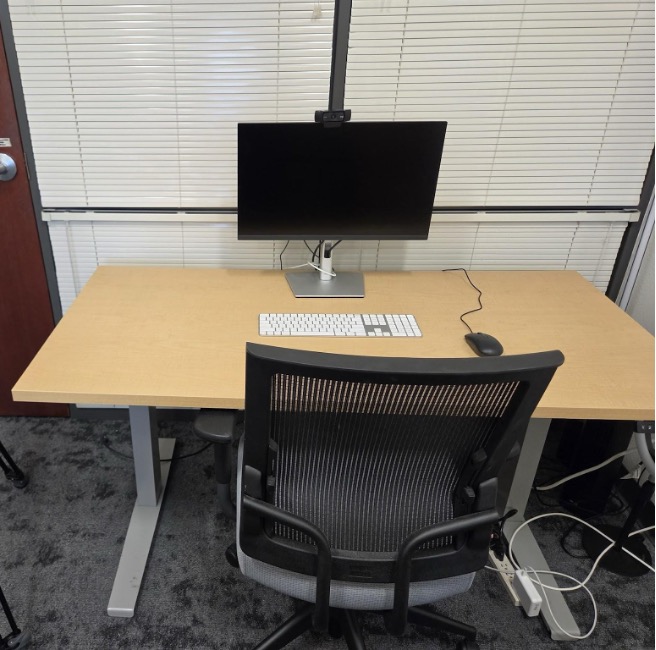
Image description: A desk with one monitor, keyboard, mouse, chair, and a clear work surface. The camera view shows the computer setup and the surrounding well-lit workspace.
Side Angle Camera Setup
For a side-angle proctored exam, you may use either a wired external webcam or a smart phone to record your exam. Your instructor may notify you of the side-angle camera type you should use; be sure to follow their instructions to meet the requirements for your course. The side-angle view must show both the student and the workspace during the exam.
- If you are given the option to use either camera type, we recommend using an external wired webcam for stability and ease of use. If you use a mobile device, confirm the Honorlock mobile app is installed, the device is connected to a stable network, and that the battery will last through the full exam.
- Use a tripod, phone stand, stack of books, longer USB cable, charger, or another stable support as needed to ensure that your camera captures the full view required by Honorlock and your instructor.
- Place the camera to the side of the desk so the view shows the full computer monitor, (including the space on both sides of the monitor), the keyboard, mouse, work area, and your side profile (including your torso, head, and hands).
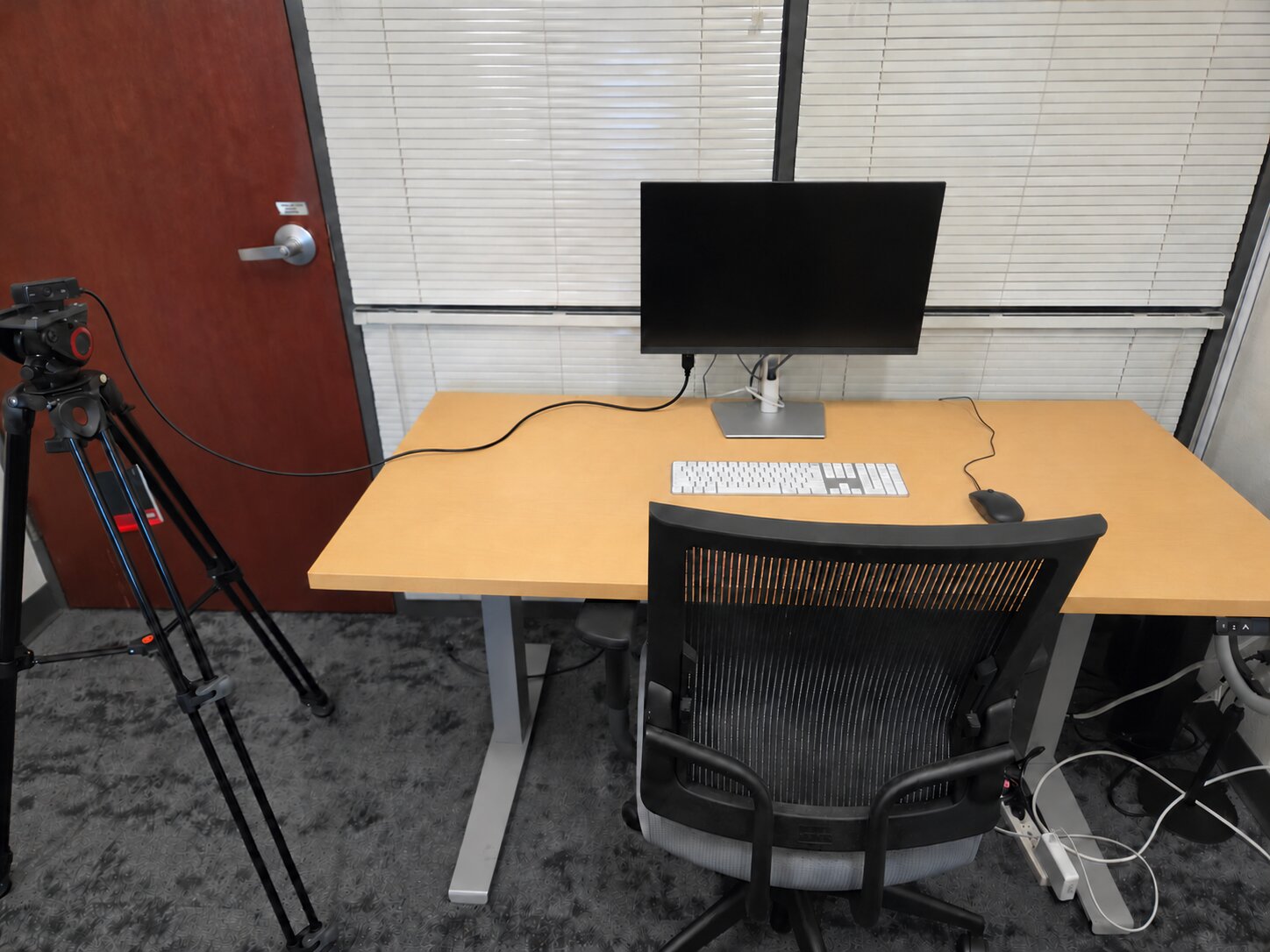
Image description: A tripod is positioned beside the desk so the camera can record the monitor, keyboard, work area, and chair.
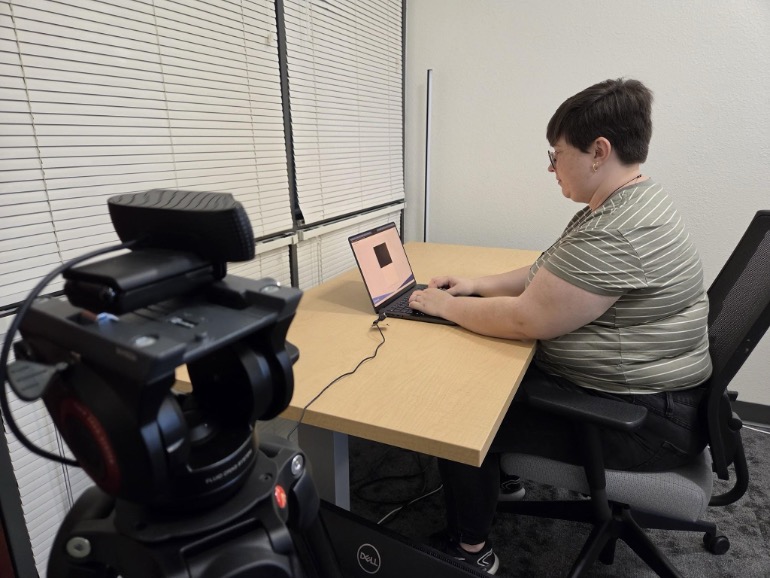
Image description: A student sits at a laptop while a camera on a tripod records from the side, capturing the student, laptop, desk surface, and work area.
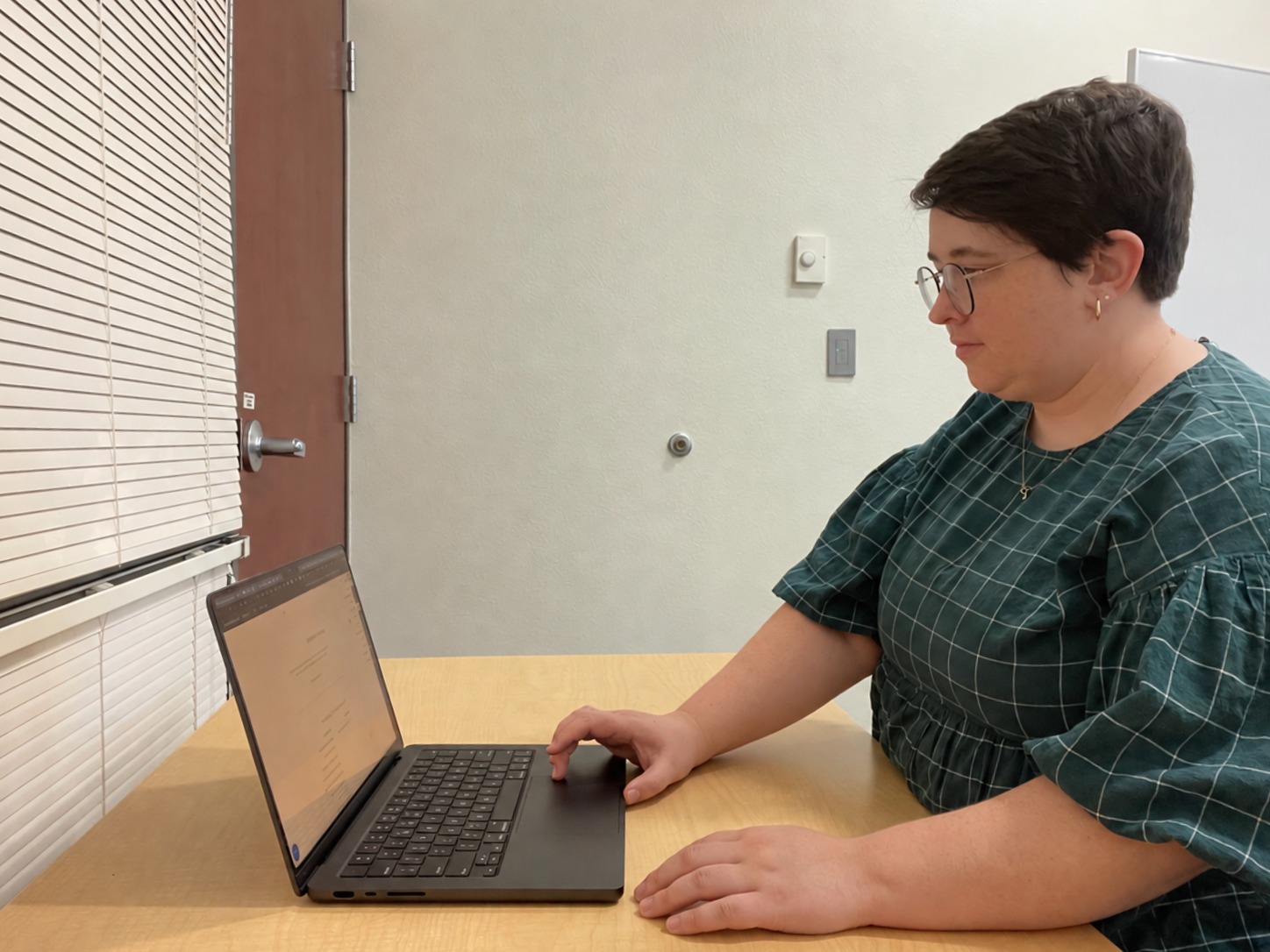
Image description: The camera view showing the student's side profile, laptop, hands, keyboard area, and workspace from a side angle.
Honorlock Side Angle Overlay Check
During setup, Honorlock may show an avatar overlay across the camera preview. This virtual review helps compare your workspace with the side-angle camera proctoring requirements.
- If the avatar and computer appear on the opposite side of your actual setup, select the mirror button to match the overlay to your setup.
- Note: The virtual review is a courtesy check and can make mistakes. You are responsible for making sure your setup matches your instructor's requirements.
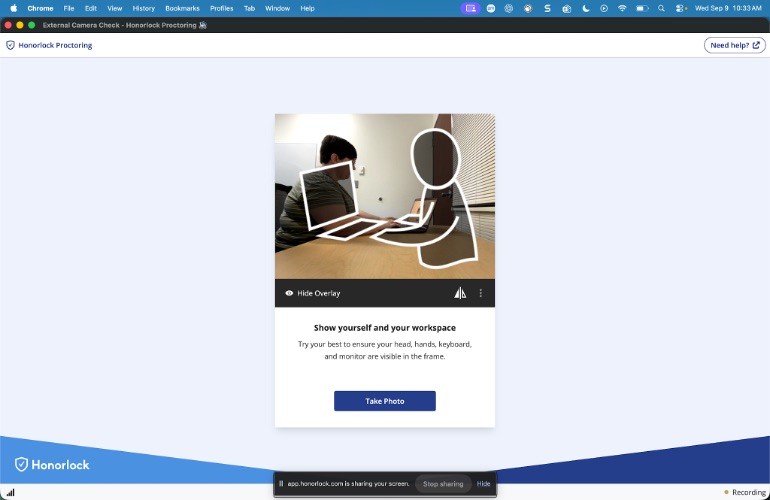
Image description: The Honorlock proctoring screen shows a student camera preview with a white avatar overlay, workspace guidance text, and a Take Photo button. The overlay is incorrectly oriented.
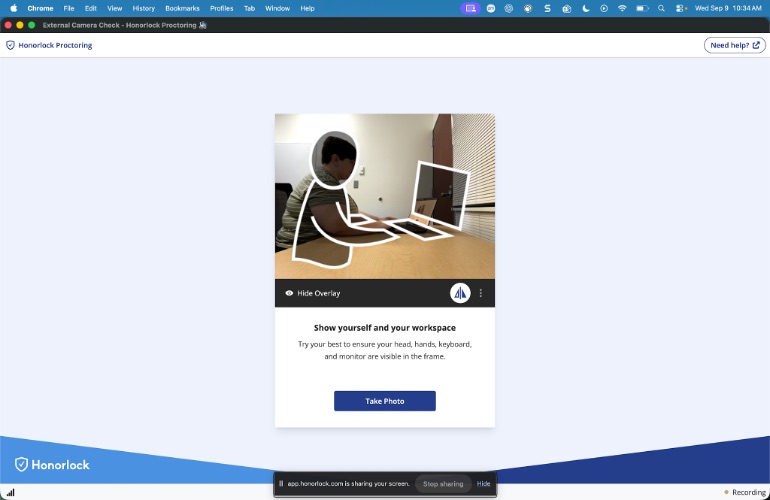
Image description: The Honorlock proctoring screen shows the mirrored avatar overlay properly aligned to the student's side-angle camera view.
When Setup Is Complete
After your camera is positioned, continue following the prompts in the Honorlock proctoring tool. Make sure that your testing setup meets the workspace requirements throughout your exam. If you need help during setup or during an exam, use the live chat bubble in Honorlock or the support information listed in the Honorlock student overview article.
