Using a landline phone to authenticate will result in using a recorded voice prompt instructing you how to verify. While it is best to use a private landline, you can have multiple people use a common phone number as an authentication device if necessary.
To add a landline, please follow these steps:
- Sign in to My ASU
- Go to the Profile tab.
- Click on the Password & Security section of the Account Details box.
- Click on the Two-Factor Auth Device Management link.
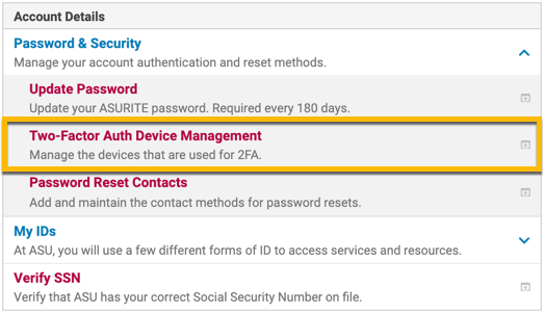
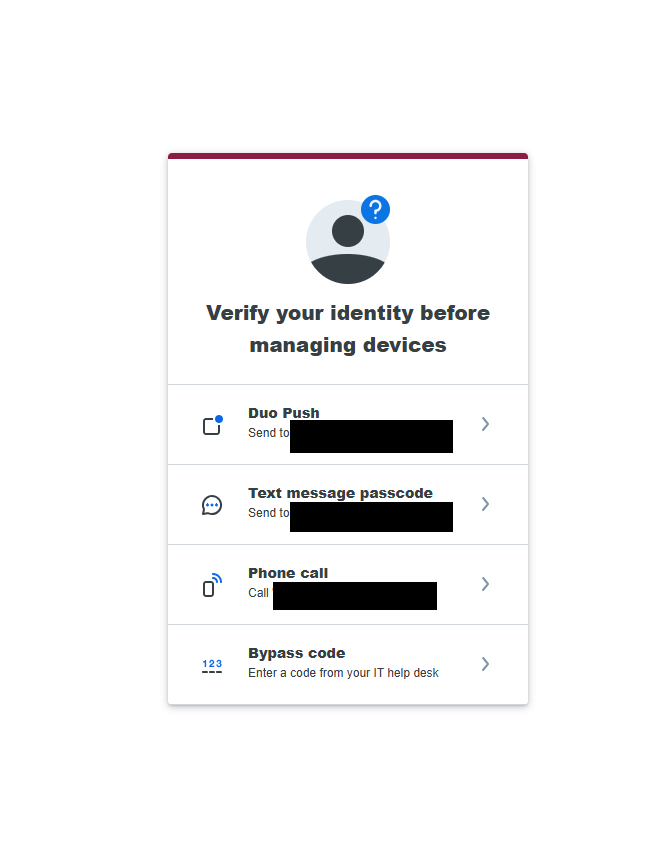
5. The system may ask you to authenticate using your primary device.
6. On the next screen, click on Add a device.
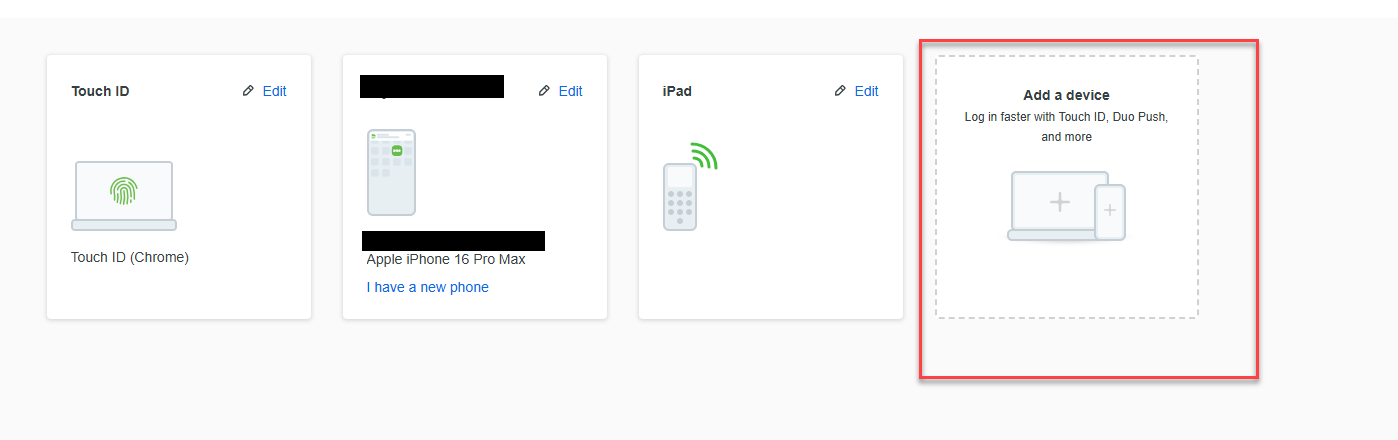
7. From this screen, you can add your additional device.
8. Choose the Phone Number option.
9. Enter the phone number and verify that the number is correct, then select This is a landline phone
10. If the number is already being used by others, you will be asked to verify ownership. Click the call me button.
11. Your phone will ring and the recording will give you a code to enter into the ownership screen. Enter the code and click verify.
12. Follow the prompts to complete the process.
13. When complete, you will see the message: Device successfully added!
14. You may either click the Continue to login button or leave the page.
