What @asu.edu email addresses or routings do you have?
A routing is an additional email address that delivers to your ASU mailbox. Using real mail as a comparison, mail directed to S. SunDevil will deliver to the same home address as Sparky Sundevil. By default, everyone receives their ASURITE@asu.edu as a routing. This address is required and cannot be changed or removed.
You can add, remove, or change your other @asu.edu routings. You can set them once and forget them, or you can change them as often as you want. But remember, changing your official asu.edu email routing is like changing your phone number or street address; you have to notify everyone you gave the old address to.
Removing or changing an existing email routing will make all new messages sent to the old address undeliverable. If you've had an email address for a while, it may not be a good idea to delete it outright since others may still have it saved and use it to email you. Instead, you can add new @asu.edu email routings and keep your old ones.
Where to manage your email address routings
To manage your email routings, first review Where does your @asu.edu email address send to?
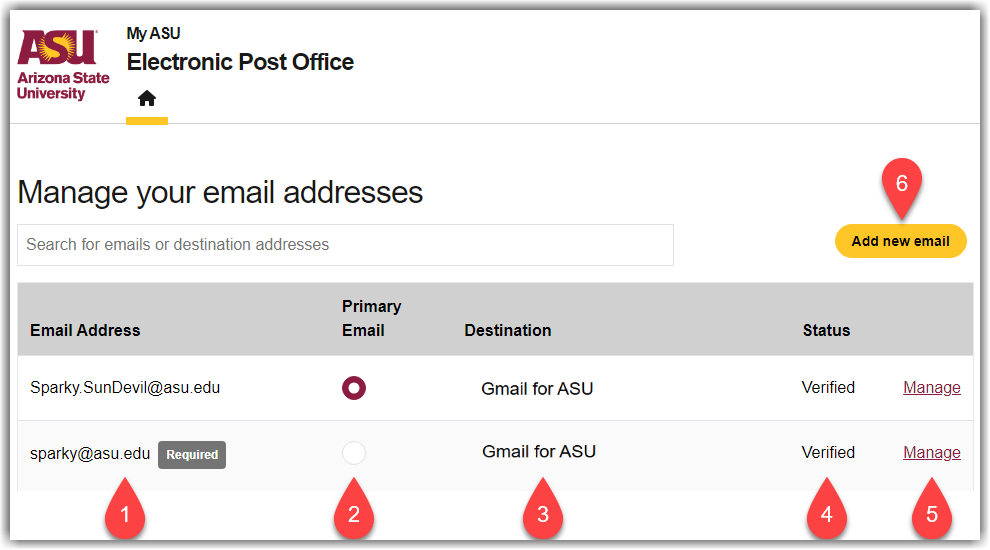
After you navigate to ASU's Electronic Post Office page, you will see the page below, which lists the various email addresses (called routings) you can manage. Here is a breakdown of each item found on this page:
-
The list of all Email Addresses you currently own (your asurite@asu.edu address is required).
-
The Primary Email Radio button allows you to set one Primary Email address. This address will update a few backend systems but won't affect logging in anywhere.
-
The Destination for the corresponding email address.
-
The Status indicates whether you have responded to the verification email when updating or adding a new address.
-
The Manage button takes you to the page to change an address's destination or delete a routing entry.
-
The Add new email button will navigate to the page where you can add new routings, if you are eligible.
⚠️
Eligibility notice
Individuals who are eligible for an ASU Gmail account will no longer see the option to add a non-ASU destination for their EPO routings.
If you want to receive emails in a separate mailbox, please configure a forwarding rule in your individual mailbox.
Create a new routing
To check or adjust your routing settings, please either navigate to ASU's Electronic Post Office (EPO) page or complete the following steps:
-
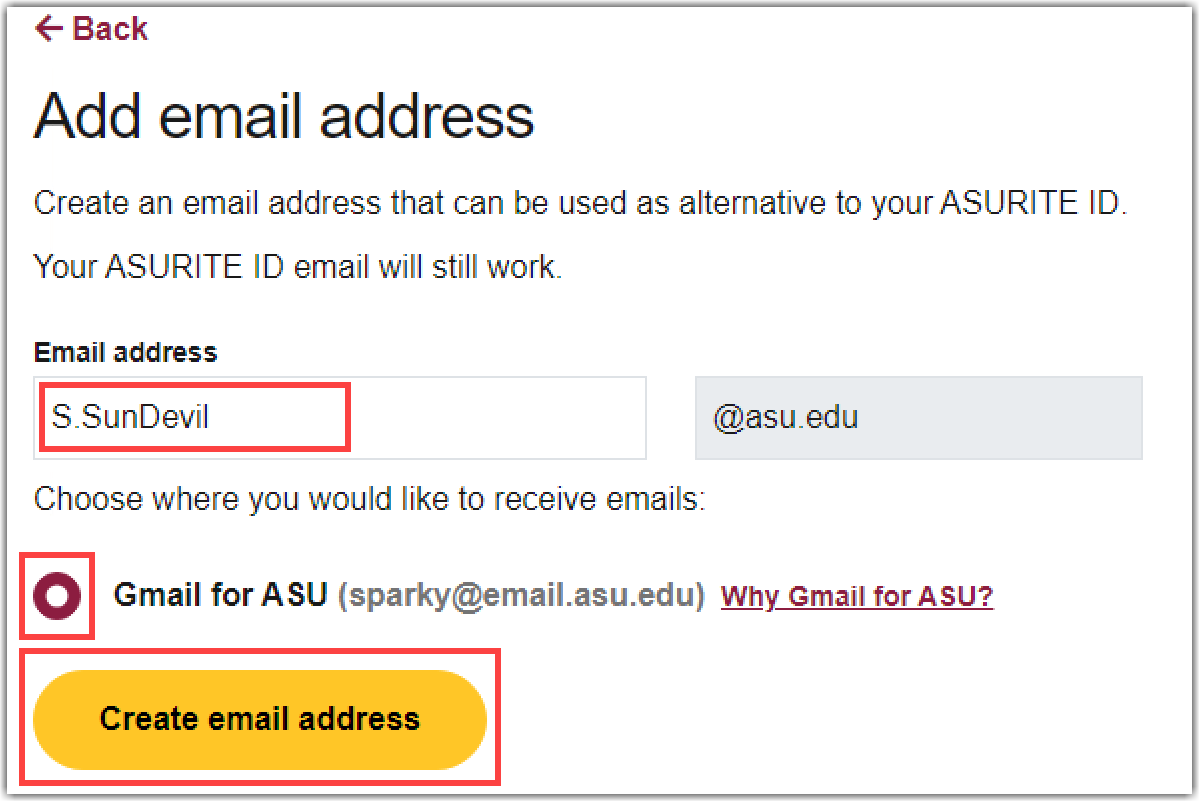
On the Manage your email addresses page, select Add new email. See #6 above.
-
In the Email Address field, enter the routing address you want to create.
-
Select Create email address to save this new routing.
Updating the destination of a routing
-
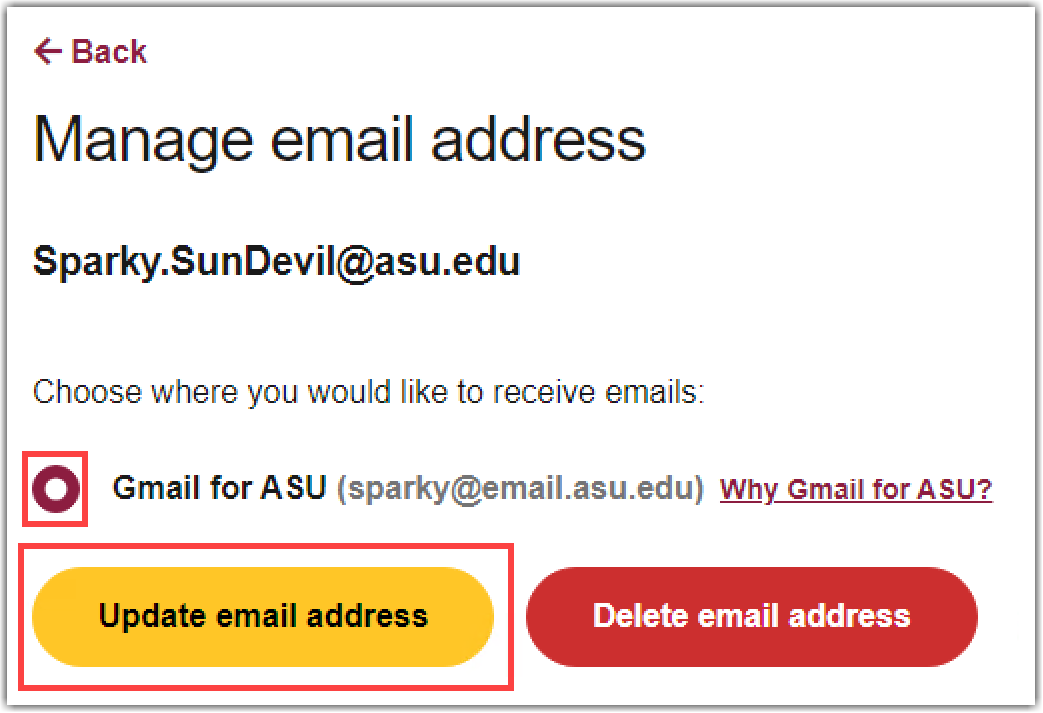
To update an address's destination, select Manage next to the corresponding email address. See #5 above.
-
Select Update email address after making a change.
-
After configuring your email as you like, test it to make sure you receive the message where you expect. Below are some guidelines to follow when testing:
-
Wait a few minutes after changing your settings before testing.
-
Have someone else send you a test message instead of sending it from yourself to yourself; some email services and programs filter out messages sent to yourself.
-
Make sure the message includes a FULL subject line and body content to avoid it being accidentally caught by a spam filter.
Delete one of your routings
-
To delete a routing, select Manage next to the corresponding email address. See #5 above.
-
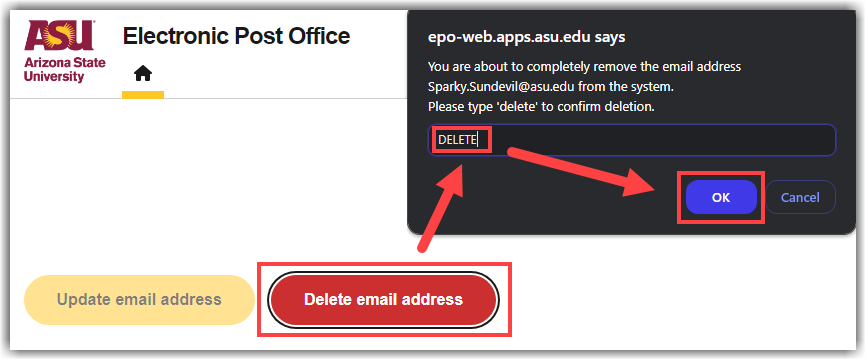
Select Delete email address to open a confirmation dialog box.
-
Before you can delete the routing, type DELETE and select OK.
NOTE: Deleting a routing will remove that address from your account. Emails sent to that address will result in an undeliverable bounceback.
Need additional help? Access 24/7 live chat, create a case from your My ASU Service Center or call (855) 278-5080.
