The Respondus LockDown Browser iPad App allows you to take exams using an Apple iPad. The app is not available for other tablets.
How to install and take a Respondus LockDown Browser Exam on an iPad
Summary
Students can use the iPad edition of Respondus LockDown Browser to take some exams that require LockDown Browser. The app is available from the Apple App Store and requires iPadOS 15 or higher.
If the exam also uses Respondus Monitor, your instructor must allow iPad use in the exam settings before you can take the exam on an iPad. If the exam is configured for LockDown Browser only, iPad use is enabled automatically unless your school or learning system restricts it.
Before You Begin
- Use an iPad running iPadOS 15 or higher.
- Install the LockDown Browser app from the Apple App Store: https://apps.apple.com/us/app/lockdown-browser/id659101775
- Make sure your iPad is charged or connected to power.
- Use a stable internet connection.
- Close other apps before starting the exam.
- Do not turn on Apple's Guided Access before opening LockDown Browser.
- If your exam uses Respondus Monitor, use a quiet, well-lit location and place the iPad on a stable surface or stand.
Important Compatibility Notes
- LockDown Browser for iPad is not compatible with Sakai. Sakai users must use a supported Windows or Mac computer.
- LockDown Browser for iPad is not compatible with the Canvas Student iPad app.
- For Canvas, use Safari, Chrome, or another mobile browser to access the quiz unless your institution gives different instructions.
- The Schoology iPad app and D2L Brightspace Pulse app are compatible with LockDown Browser for iPad.
- Screen recording is not supported on iPad. If an exam uses Respondus Monitor with screen recording, the webcam recording may work, but an iPad will not produce a screen recording.
Install the iPad App
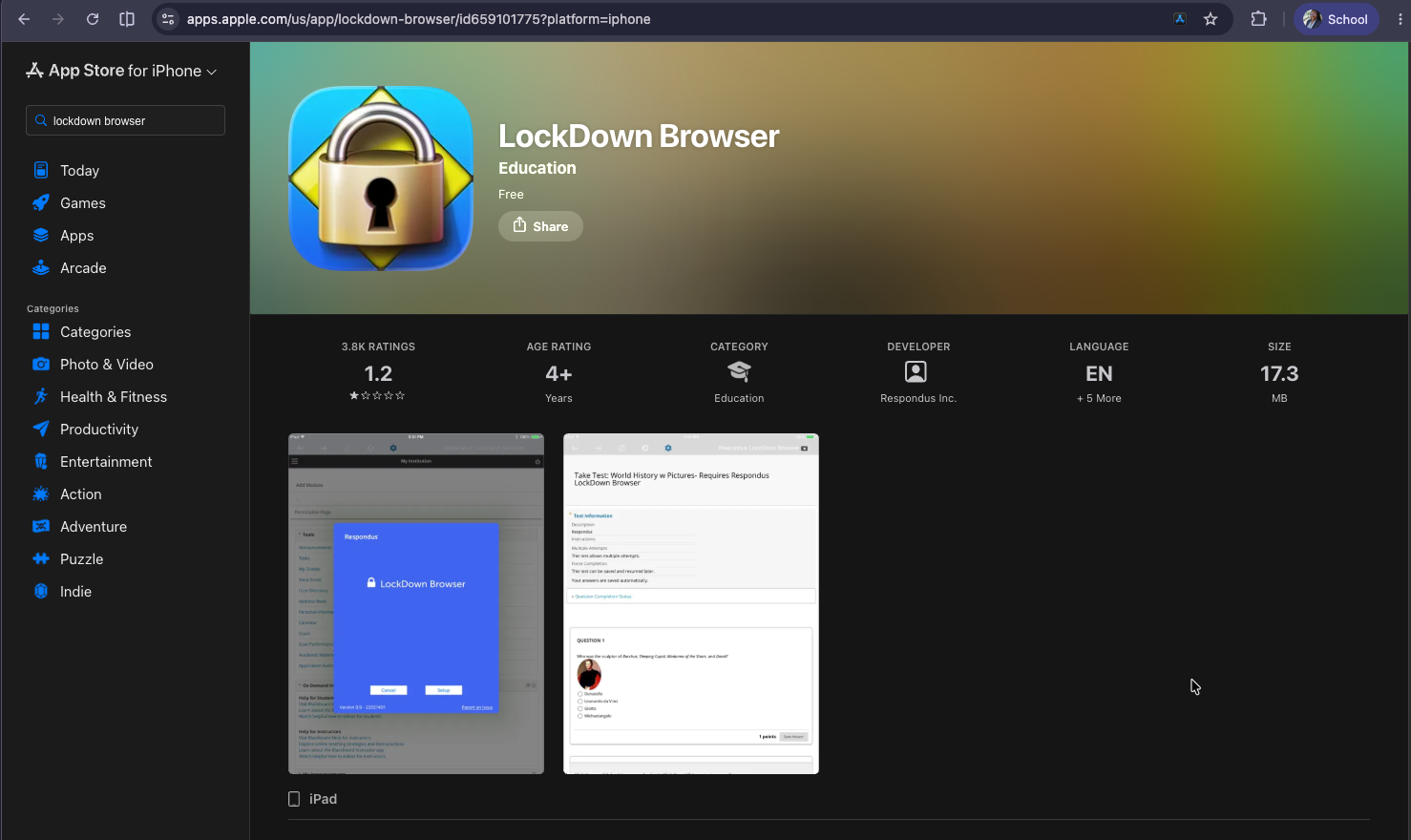
1. Open the Apple App Store on your iPad.
2. Search for Respondus LockDown Browser.
3. Select LockDown Browser by Respondus Inc.
4. Tap Get to install the app.
5. After installation, do not open Guided Access from iPad Settings. LockDown Browser will use iPad app self-lock when the exam starts.
Start an Exam
The way you start the exam depends on your learning system.
Canvas Classic Quizzes
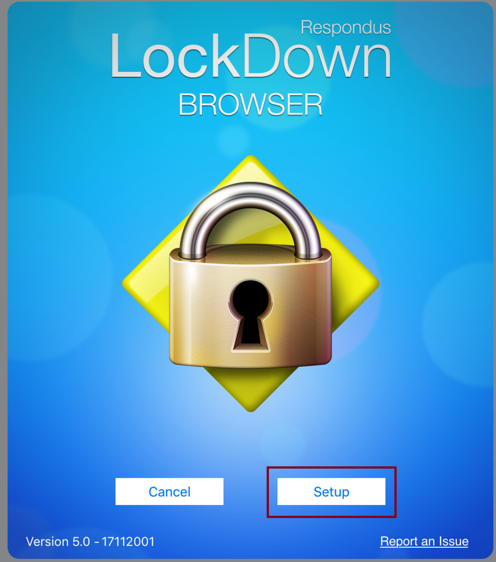
1. Open the LockDown Browser app.
2. If this is your first time using the app, select your institution and server when prompted.
3. Sign in to your school learning system.
4. Open your course.
5. Navigate to the quiz or exam.
6. Start the exam.
Canvas New Quizzes, or ALEKS
1. Open Safari, Chrome, or another mobile browser on your iPad.
2. Sign in to My ASU and access Canvas or the Math Placement.
3. Open your course.
4. Navigate to the quiz or exam.
5. Start the quiz. LockDown Browser should open automatically.
Confirm App Self-Lock
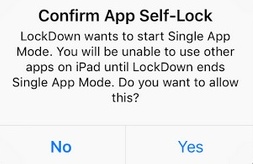
When the exam starts, iPadOS may ask whether you want to allow LockDown Browser to start Single App Mode.
1. Review the Confirm App Self-Lock message.
2. Tap Yes.
3. Wait for confirmation that the iPad is locked to LockDown Browser.
4. Continue into the exam.
During the Exam
- Stay in LockDown Browser until the exam is submitted.
- Do not try to switch to another app, take screenshots, copy questions, print, or open other websites unless your instructor specifically allows it inside the exam.
- If the exam uses Respondus Monitor, keep your face visible to the camera and follow the startup sequence.
- If the app or internet connection fails, reopen the exam if possible and contact your instructor if you cannot continue.
Submit and Exit
1. Submit the exam in your learning system.
2. Wait for confirmation that the iPad is no longer locked to LockDown Browser.
3. You may take another LockDown Browser exam or close the app.
If You See "Your Instructor Hasn't Enabled the Use of a Tablet"
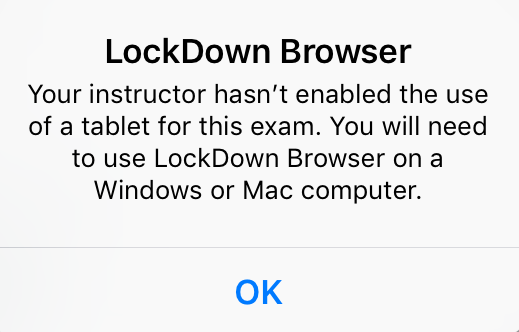
This message means the exam cannot be taken on an iPad with its current settings.
What to do:
1. Use a supported Windows or Mac computer to take the exam.
2. Contact your instructor to see if they intend to allow iPad use.
3. If the exam uses Respondus Monitor, tell your instructor that the optional iPad setting must be enabled for that exam.
Guided Access Warning
Do not manually start Apple's Guided Access before entering LockDown Browser. If Guided Access is already turned on, LockDown Browser may show a warning, and the exam may not start correctly.
If you see a Guided Access warning:
1. Triple-click the Home button or top button, depending on your iPad model.
2. Exit Guided Access.
3. Return to LockDown Browser and start the exam again.

Related articles:
Need additional help? Access 24/7 live chat, or create a case from your My ASU Service Center, or call 855-278-5080.
