You can perform the following tasks to manage the devices that are set up to use two-factor authentication:
- Change your default two-factor device
- Set up automatic authentication upon login
- Change the display name of a device
- Remove or delete a device
- Reactivate Duo when switching to a new phone with the same phone number, or if you factory reset your current phone
To manage your devices, do the following:
- Log in to any ASU webpage that requires single sign-on, such as My ASU.
- A two-factor authentication screen will appear. Click Manage Devices.
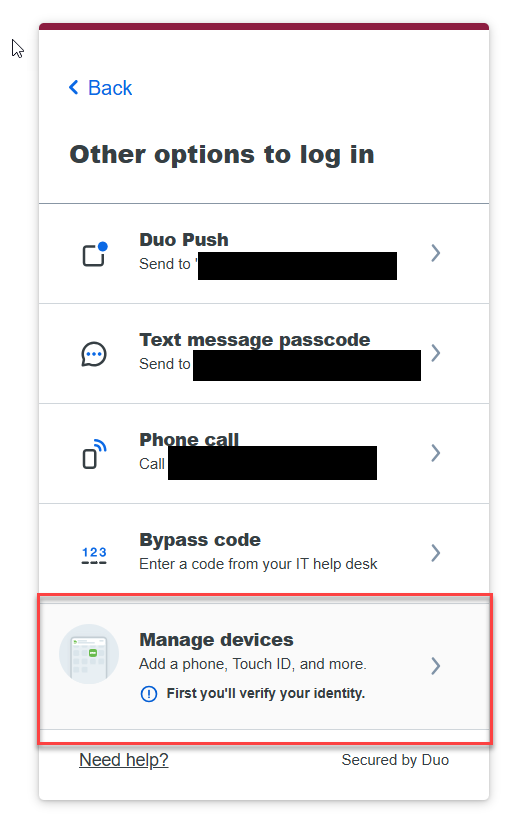
- Authenticate with one of your devices.
- From here, you can change the options for each device, add devices, select which device is the primary device and set up automatic authentication upon login.
For more information, please see Duo's online guide on the Managing Your Devices page. If you need further assistance, please contact the Experience Center at 1-855-278-5080.
